
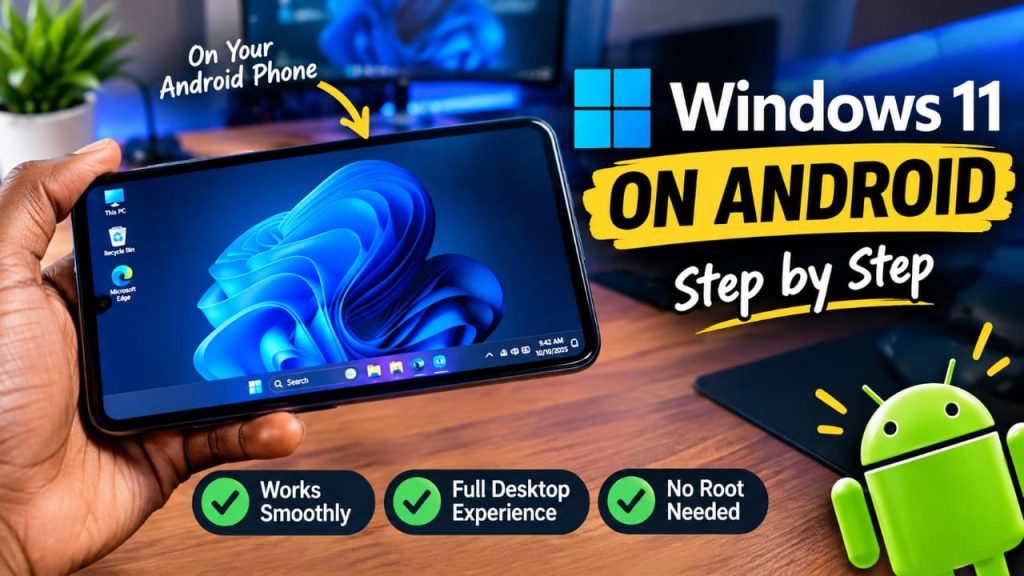
Have you ever wanted to experience the look of Windows 11 on your Android phone? The good news is that you can customize your phone to look similar to a Windows 11 computer without buying a new device.
By downloading a Windows-style launcher from the Google Play Store You can transform your Android home screen with a Windows-inspired desktop, app icons, menus, and other familiar features.
In this guide, you will learn how to make your Android phone look like Windows 11 in just a few simple steps.
What Is a Windows 11 Launcher for Android?
A launcher is an Android application that changes the appearance and layout of your phone’s home screen. Depending on the launcher you choose, it may provide a Windows-inspired interface with desktop-style icons, a taskbar, a Start menu, and a file-explorer-like layout.
Important: A launcher does not install the actual Windows 11 operating system on your Android phone. It only changes the phone’s appearance and some navigation features. Your device will continue running Android.
What You Need Before You Start
Before getting started, make sure you have the following:
- An Android smartphone or tablet.
- A working internet connection.
- Access to the Google Play Store.
- Enough storage space to download and install the launcher.
How to Get Windows 11 on Your Android Phone
Follow these steps to customize your Android device with a Windows 11-style interface.
Step 1: Open the Google Play Store
Official Link: https://play.google.com/store/search?q=hyperdroid+launcher+windows+11&c=apps&hl=en
Step 2: Search for a Windows-Style Launcher
In the search bar, type Windows launcher or Windows 11 launcher.
Review the available applications and choose one that provides the appearance and features you want. Before installing it, check the app’s ratings, recent reviews, update history, developer information, and requested permissions.
Step 3: Download and Install the Launcher
Tap the selected launcher’s Install button and wait for the download and installation to finish.
For security, download the application from the official Google Play Store with the link in Step1 above rather than from unknown websites.
Step 4: Open the Launcher
Once installation is complete, tap Open to launch the application.
Follow the on-screen instructions to configure the interface.
Key Features of a Windows 11 Launcher for Android
Here are some of the features you may enjoy after installing a Windows 11-style launcher on your Android phone.
1. Windows 11-Style Desktop
The launcher can transform your normal Android home screen into a desktop-inspired interface. Depending on the app, you may be able to arrange application shortcuts, change icon sizes, create folders, and customize your desktop layout.
2. Start Menu
It has Start Menu similar to the one found in Windows 11. You can use it to view installed apps, access pinned applications, and find frequently used tools.
3. Taskbar
A Windows-style taskbar appears at the bottom of your phone’s screen. It can provide convenient access to app shortcuts, navigation controls, or other launcher features.
4. File Manager — This PC
This launcher include a file manager designed to resemble Windows File Explorer. You can browse folders, view pictures and documents, create folders, copy and move files, rename items, and delete files.
5. Recycle Bin
Recycle Bin feature that lets you manage deleted files. Whether you can restore a file depends on how the launcher handles deletion and whether the file is still available.
6. Search Function
A built-in search feature may help you locate installed applications, files stored on your device. This makes it easier to find what you need without manually browsing through every folder.
7. Customizable Wallpapers and Themes
You can personalize your phone with Windows-inspired wallpapers, backgrounds, icon styles, colors, and themes. Some launchers also support live wallpapers and widgets.
Is It Safe to Install a Windows Launcher?
A launcher downloaded from the Google Play Store can be a convenient way to customize your phone however it is safe to download and install the windows launcher.
Frequently Asked Questions
1. Do I need to root my Android phone?
No. Installing a standard launcher from the Google Play Store generally does not require rooting your phone.
2. Is the Windows launcher free?
It is free to download and does not require any subscription or payment
3. Can I uninstall the launcher later?
Yes. You can generally uninstall it like other Android applications and switch back to your phone’s original launcher.
4. Can I connect keyboard and mouse?
If your device supports connected accessories then yes you can use mouse and keyboard and this will make it more easier to navigate
Conclusion
Making your Android phone look like Windows 11 is a simple way to give your device a fresh, desktop-inspired appearance. By downloading a suitable launcher from the Google Play Store, installing it, and customizing the interface, you can enjoy a Windows-style home screen without replacing Android.
If you found this guide helpful, share it with your friends and explore more technology tutorials on our website.
Disclaimer: Windows 11 is a Microsoft operating system. Third-party Android launchers are not the same as Windows 11 and may not be affiliated with Microsoft.
- How to Get Windows 11 on Android: Turn Your Phone into a Windows-Style PC
- HOW TO FIX “THERE WAS AN ERROR WHEN TRYING TO REARM OFFICE. TRY PASSING SKU ID AS PARAMETER.
- Hello world!

Leave a Reply